Static segments
Description
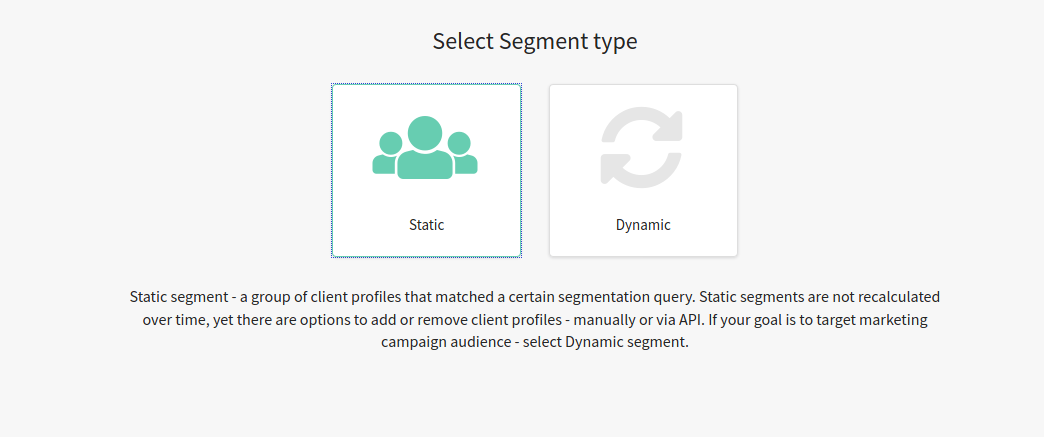
Static segments allow you to deal with customers groups. You can add profiles into the segment manually or from the other segment. Also, you can remove profiles manually, or basing on other segments conditions. To create a static segment, press + Create in the segments list, and select Static:
General settings and actions
In general settings, enter Name and Description of the static segment, if necessary, set Access groups and Tags.
Access groups and Tags can be used for grouping segments during external SQL tables synchronization.

These actions are available at the top part of the segment editor:
 — Add profiles by segment. Select existing segment, which profiles must be added into the segment you are working on.
 — Remove profiles by segment. Select existing segment, which profiles must be added into the segment you are working on.
 — Recount. Completely recounts static segment data.
 - View list of profiles. Allows to view the list of profiles included in the segment.
If you Recount static segment — queries to the databases that were configured for it, will be used. Data from profiles, added or removed manually, will not be saved.
Segment statistics
In the Statistics block, total segment profiles amount, and amount of profiles added in a week, is displayed. To update statistics, press the button at the top part of the page:

Profiles selection
In the Segmentation query block, you can set profiles, that will be in the static segment in the first turn. Based on this query, the segment will be counted from start, if you select Recount segment action at the top part of the page.
If you activate Update segment everyday option, the static segment will be counted anew, every day at 23:59, according to the server time.
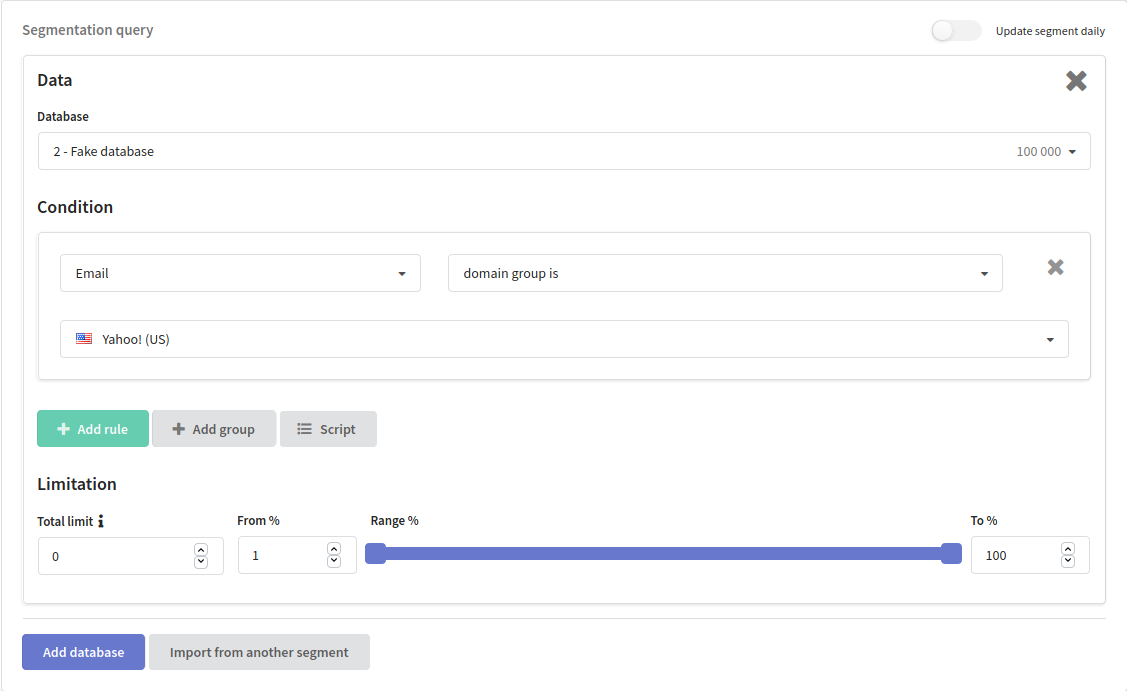
Databases and rules
Press Add Database button to start configuring selection, or to add another profiles source into the segment. Also, you can import and selection rules from the other segment:

If you import conditions from another segment, only the conditions inside the elements will be imported. The top-level condition is not imported.
Select profiles base in the Database drop-down menu. For each database, you can set the Limitation, which can be fixed number or range. The query may contain rules or rules group, that have general conditions:
- "AND" condition — subscribers, that fit all rules and rules groups, will be selected.
- "OR" condition — subscribers, that fit at least on rule or rules group, will be selected.
To add rule or rules group, press appropriate button. To remove rule or rules group, press cross button in the right part of the tile.

Rules group
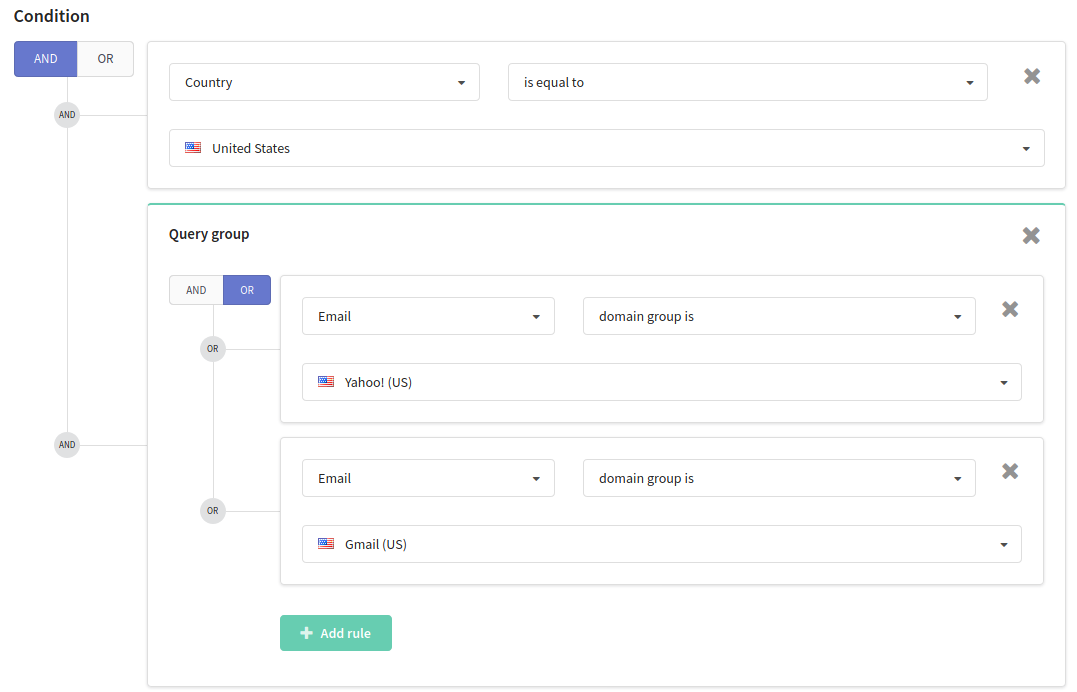
Each rules group may contain several conditions, that can be counted by "AND" or "OR" operators. The rules group below selects subscribers, whose mail domain is Yahoo or GMail:
Script
You can create segmentation query manually, using built-in JSON editor. To do this, press Script button:

Segment limitation
-
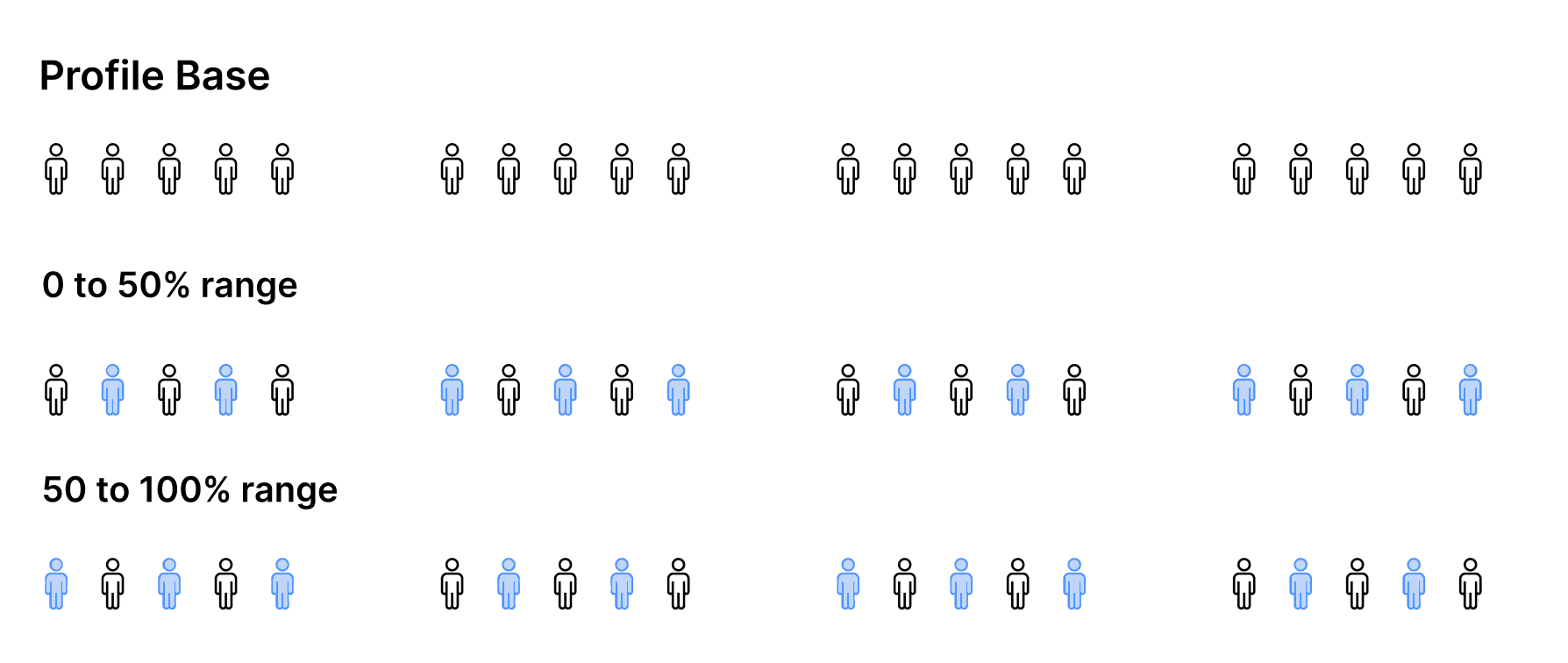
Range defines the portion of the database to which segmentation conditions will be applied. By default, the range is set to 100%, meaning that if there are 1000 profiles in the database, segmentation conditions will be applied to all profiles in the database. For example, if you set the range from 10% to 50%, the conditions will be applied to approximately 400 profiles, evenly selected from the entire database.
-
Total limit is the maximum number of profiles that can be included in the segment. For example, if 1000 profiles meet the segmentation conditions and the limit is set to 400, the segment will include the first 400 profiles from the selection. By default, limit is not set (zero value).
Limitations set using the Range apply to the entire database. Limitations set using the Total limit apply to the result of the segment selection.

The platform assigns a specific range to specific users: the same range will always select the same people from the database, even when used across different segments. This means the selection is not random — each user is assigned a numerical value, and they are included in the segment only if that value falls within the defined range. This approach allows you to create non-overlapping selections by assigning different ranges (for example, the 0–20% and 80–100% ranges will never overlap). When new users are added to the database, they can also fall into the defined range with the same probability — for instance, 1 in 5 if the selected range is 20%.
Manual adding and removing profile
You can add certain subscriber into the static segment, or remove subscriber, manually. To do this, open subscriber Profile, go to History tab, and see Included in segments block. Here you can select segments for adding or removing subscriber:
