Managing pop-ups manually via script
This guide is tailored for platform users who implement pop-ups on their site using scripts rather than the Altcraft Tag Manager.
Obtaining the script
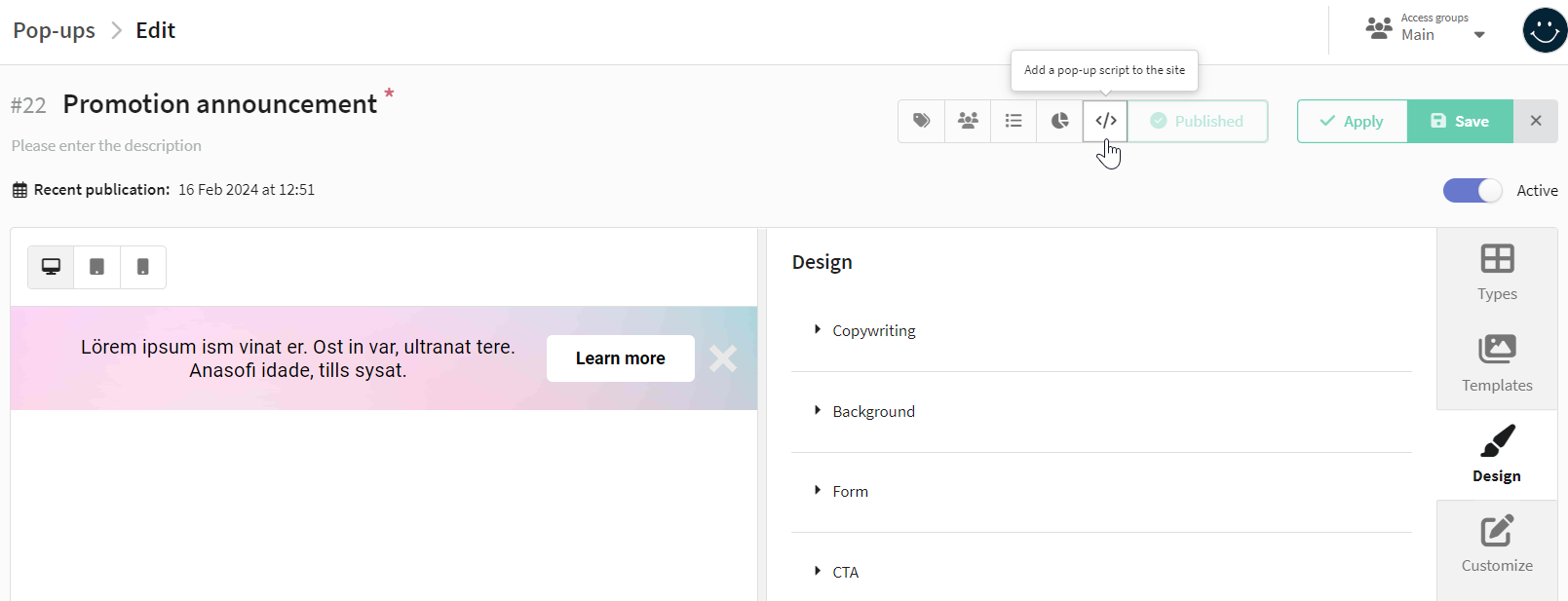
To obtain the script, go to the pop-up editor and in the additional actions menu, click on the icon  :
:
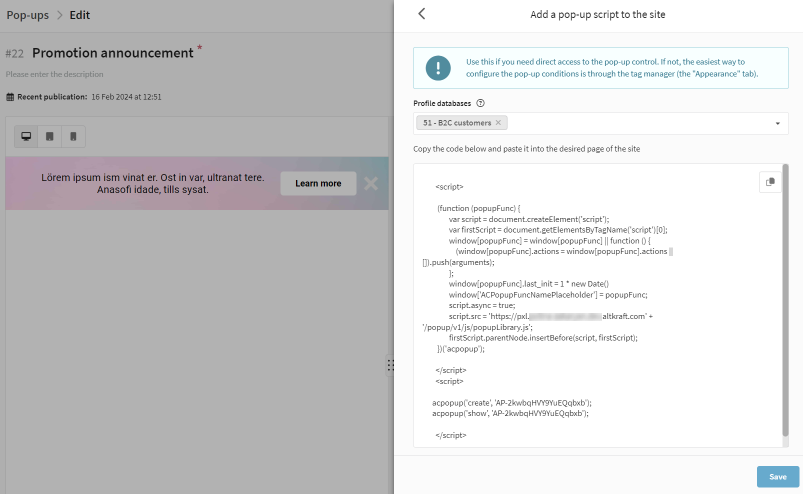
In the new window, select the databases for profile search. When a user fills out the pop-up form, their data is sent to the platform. Then the platform checks if there is a profile with such data in one of the selected databases. If there is, the data of the existing profile is updated; if not, a new profile is created in the database.
Note that here you are setting the databases to search for existing profiles. User data, filled out in the pop-up form, will be imported into the database specified in the "Actions" section of the pop-up editor.
Click the "Show code" button. This code needs to be placed on the pages of the site where you want to show the pop-up. Further details on configuring the pop-up appearance logic are provided below.
Managing a popup via the script
The following code is used to work with popups on the site:
<!-- Loading the script onto the page -->
<script>

  (function (popupFunc) {
        var script = document.createElement('script');
        var firstScript = document.getElementsByTagName('script')[0];
        window[popupFunc] = window[popupFunc] || function () {
            (window[popupFunc].actions = window[popupFunc].actions || []).push(arguments);
        };
        window[popupFunc].last_init = 1 * new Date()
        window['ACPopupFuncNamePlaceholder'] = popupFunc;
        script.async = true;
        script.src = 'https://pxl.altkraft.com' + '/popup/v1/js/popupLibrary.js';
        firstScript.parentNode.insertBefore(script, firstScript);
  })('acpopup');

</script>

<!-- Requesting pop-up data from the server + displaying the pop-up on the page -->
<script>

  acpopup('create', '<popup_id>');
  acpopup('show', '<popup_id>');

</script>
If you add this code to your site, the popup will be shown as soon as the page loads because of this script:
<script>
  acpopup('create', '<popup_id>');
  acpopup('show', '<popup_id>');
</script>
You'll need to set up how and when the pop-up appears.
Example 1. Pop-up appears 10 seconds after the page loads:
<script>
    window.onload = function() {
        setTimeout(function() {
            // Запрос данных попапа с сервера
            acpopup('create', '<popup_id>');

            // Показ попапа
            acpopup('show', '<popup_id>');
        }, 10000);
    };
</script>
Example 2. Pop-up appears when a button is clicked:
<button onclick="showPopupClick()">Show the pop-up</button>

<script>
    function showPopupClick() {
        acpopup('create', '<popup_id>');
        acpopup('show', '<popup_id>');
    }
</script>
To manage the pop-up, use the acpopup function. It has 3 modes:
- create
- show
- sendEvent
create — request pop-up data from the server
In the acpopup function you must pass the pop-up ID as the second argument. As the third argument you can pass* an object with information about matching* and SMID. The table describes the structure of this object:
| Parameter | Type | Required | Description |
|---|---|---|---|
matching_mode | string | No | Profile search mode. It can be "email", "email_profile", "phone", "profile_id" or "custom". |
matching | JSON object | No | An object with one or two parameters: "search field": "field value" and "db_id": "database ID" — the array of the databases in which the profile should be searched. db_id can be omitted if the profile database is selected in the pop-up settings. |
smid | string | No | Send message ID |
Example:
acpopup('create', 'AP-6eVbo2dP2Nnh0wtBp', {
    matching_mode: 'email',
    matching: {
        email: 'john@example.com',
        db_ids: [1]
    },
    smid: 'send_message_id',
})
show — show a pop-up to users
In the acpopup function you must pass the pop-up ID as the second argument. The third argument can be object with onShow function, which will be called after the popup appears on the screen.
Example:
acpopup('show', 'AP-6eVbo2dP2Nnh0wtBp', {
  onShow: function () {
      console.log('Look at the screen')
  },
})
sendEvent — send a pop-up custom event
In the acpopup function you must pass the pop-up ID as the second argument. The third argument must be an object with custom event data. You can also pass matching data for a specific event and SMID to this object. The table describes the structure of the object:
| Parameter | Type | Required | Description |
|---|---|---|---|
web_event_name | string | Yes | Event name |
web_event_value | int | No | Numeric value of the event |
web_event_data | JSON object | No | Object with optional data for the event |
matching_mode | string | No | Profile search mode. It can be "email", "email_profile", "phone", "profile_id" or "custom". |
matching | JSON object | No | An object with one or two parameters: "поле для поиска": "значение поля" and "db_id": "ID базы" — databases in which to search for a profile. db_id can be omitted if the profile database is selected in the pop-up settings. |
smid | string | No | Send message ID |
Example:
acpopup('sendEvent', 'AP-6eVbo2dP2Nnh0wtBp', {
    web_event_name: 'new_event',
    web_event_value: 500,
    web_event_data: {
        status: 'active'
    },
    matching_mode: 'email',
    matching: {
        email: 'john@example.com',
        db_ids: [1]
    },
    smid: 'send_message_id',
})
If you're adding multiple pop-ups to one page, you only need to place the coode for loading script onto the page once, and then you can manage them using the acpopup function.